Packages
Packages allow you to view and manage build versions, providing insight into your application's development history and enabling you to track changes over time.
Packages are created automatically when you push a new commit to the repository. All packages are available for every environment.
View Packages
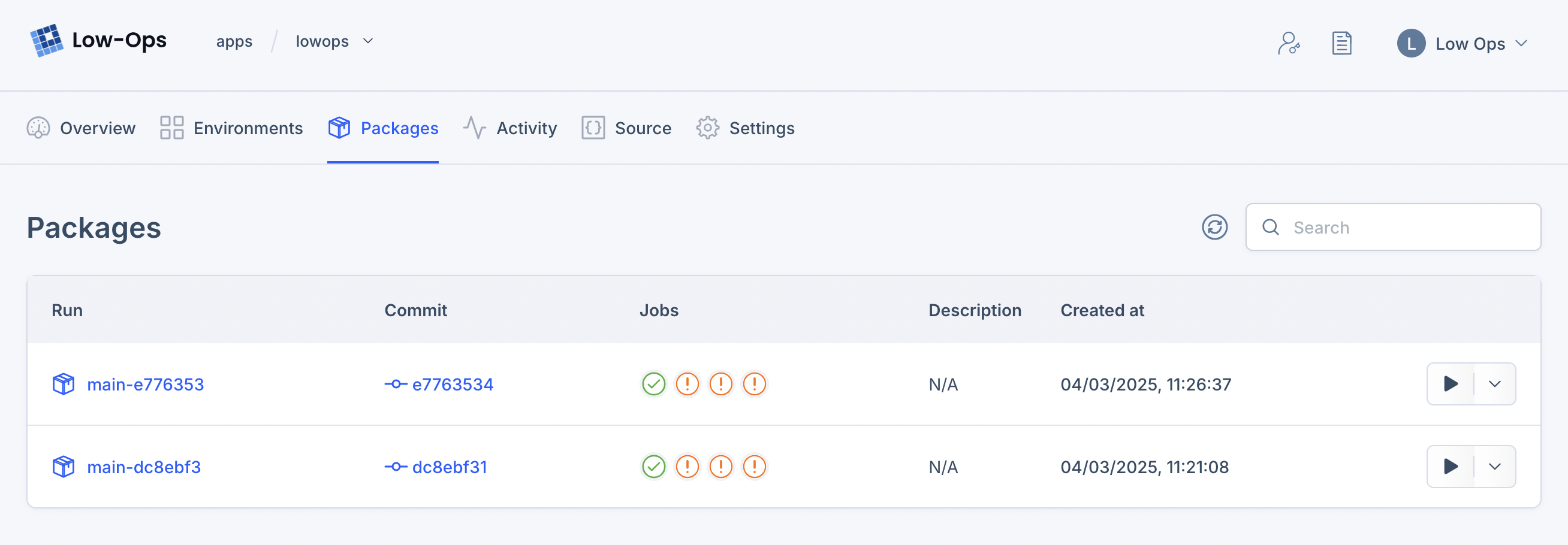
To view packages, navigate to the Application > Packages tab in Low-Ops.
Package Details
Some package details are available in the Packages table. There you can see the package name, version, jobs
(vulnerability scanning, linting, unit tests), creation date, and actions.
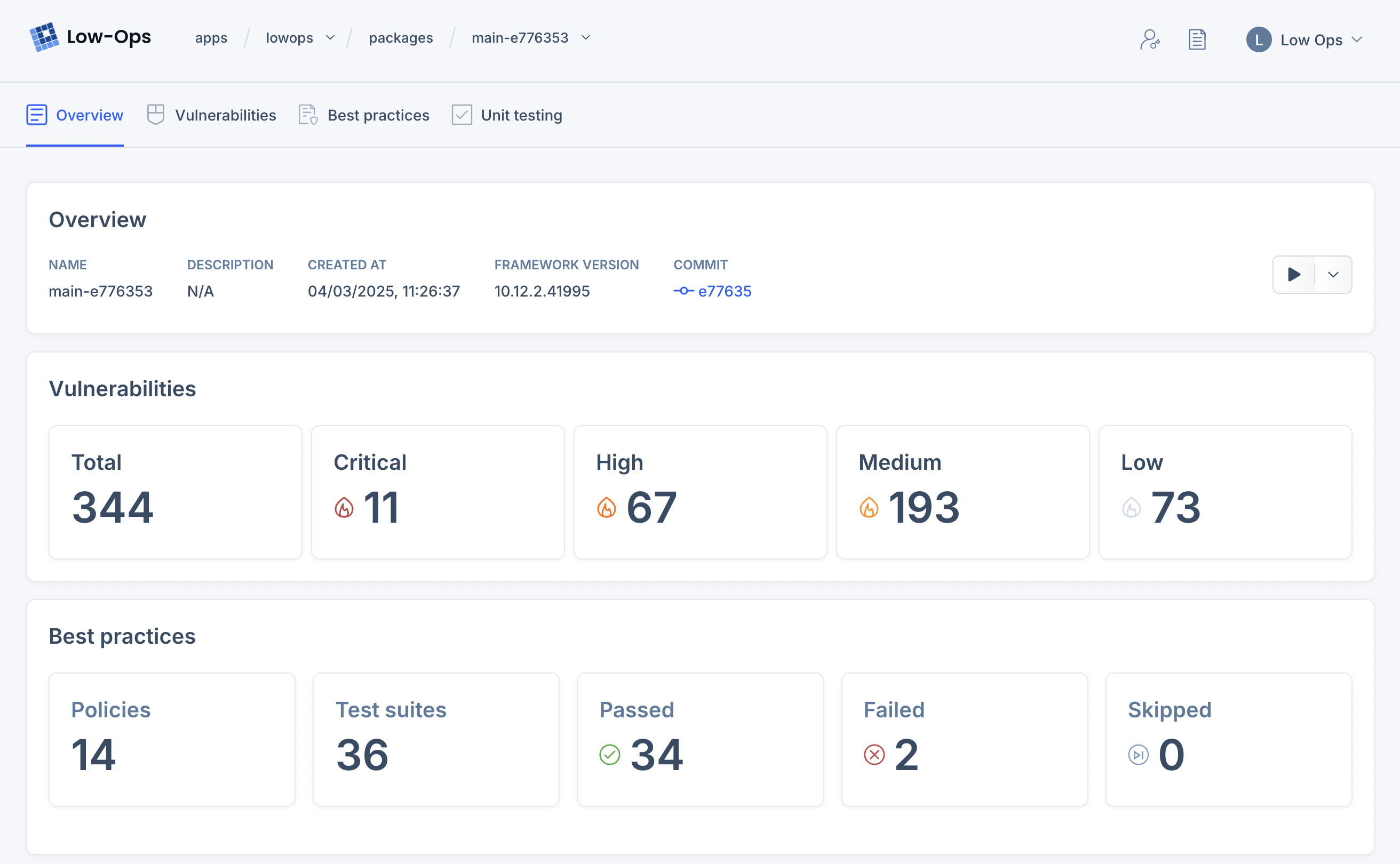
To view all details of a package, click the package name.
Package Description
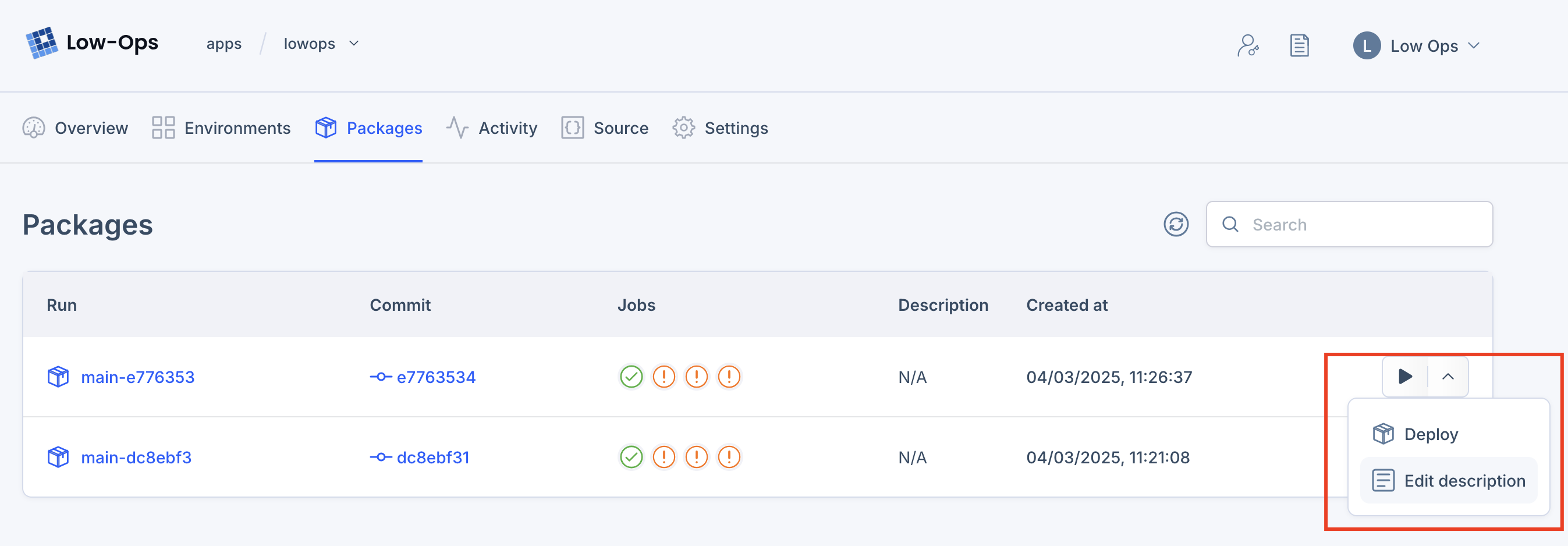
You can give a package a description to help you identify it. Simply open the action menu in the Packages table and
click Edit description.
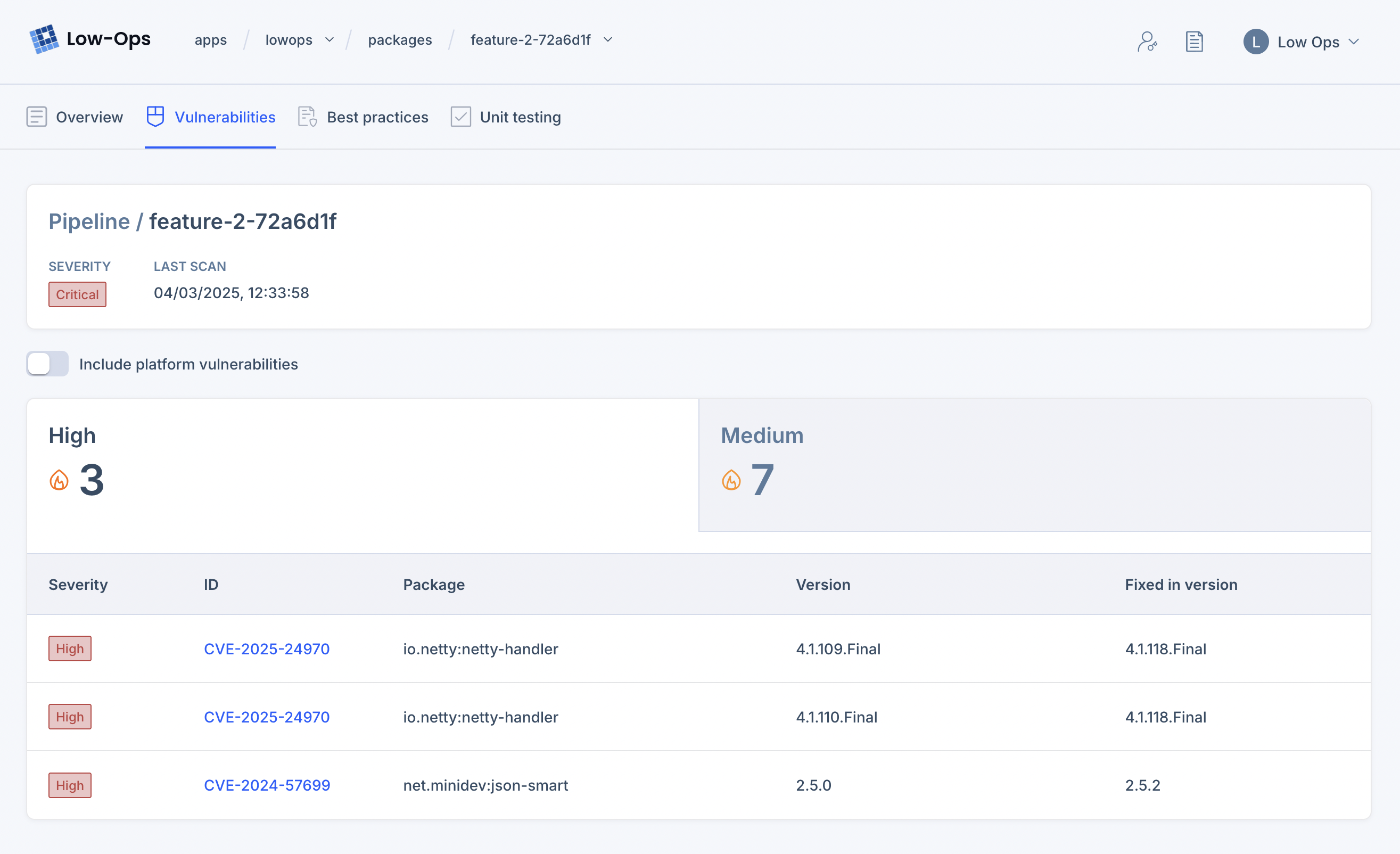
Package Vulnerabilities
The Vulnerabilities feature helps identify and categorize potential security issues within each package/build,
allowing you to address vulnerabilities promptly.
Regularly reviewing Vulnerabilities information can help maintain the security of your applications and address
potential issues in a timely manner.
You can see the Vulnerabilities summary in the Packages screen under the job column. You can also navigate to the
package details Application > Package > Vulnerabilities screen to see full details of the vulnerabilities.
Package Best Practices
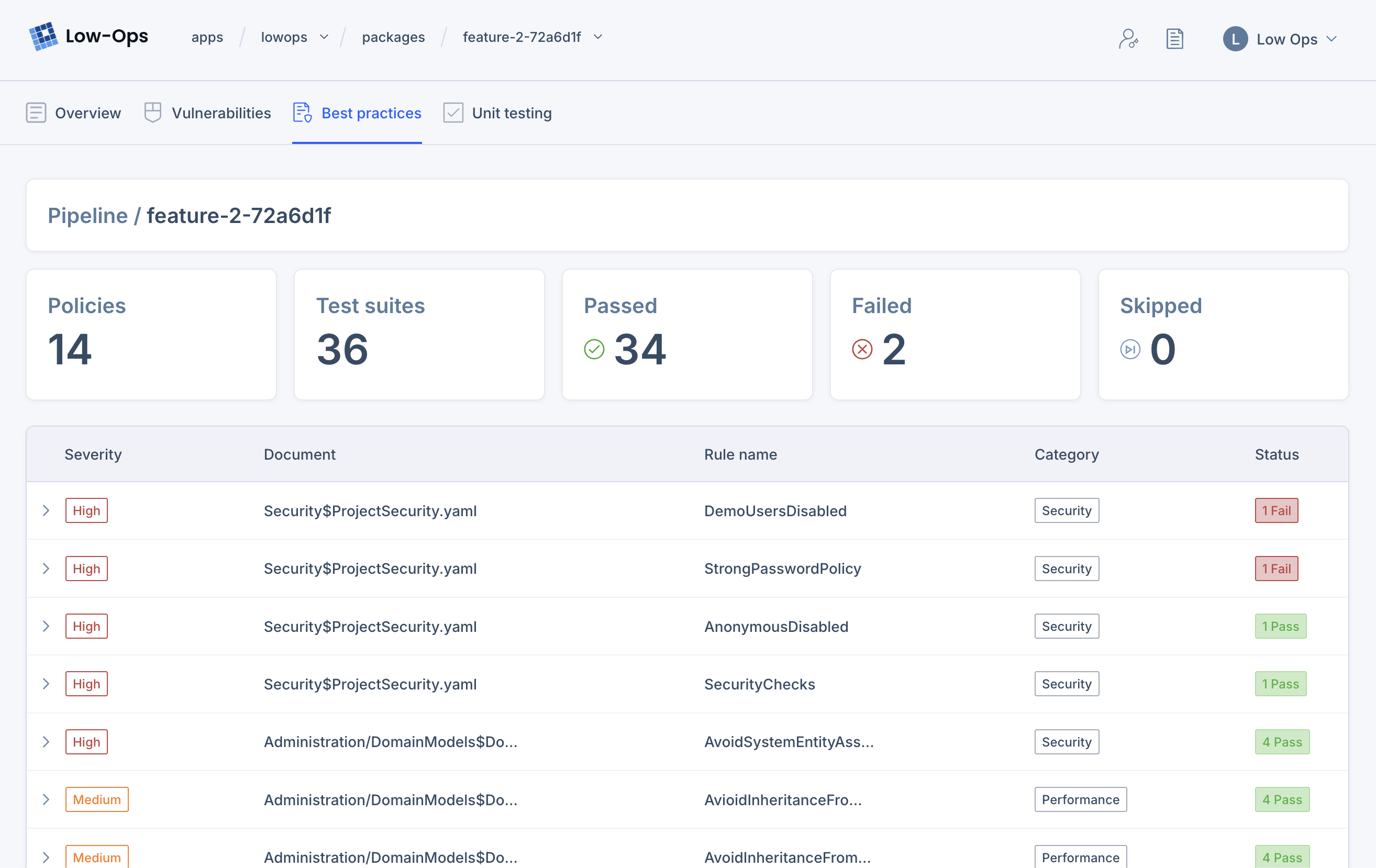
Best practices are a set of pre-defined rules that validate app development against best practices. They help ensure
code quality and adherence to development standards.
Consistently reviewing and addressing both Security Severity issues and Policy test results can significantly enhance the quality and security of your applications.
You can see the Best Practices summary in the Packages screen under the job column. You can also navigate to the
package details Application > Package > Best Practices screen to see full details of the best practices.
Package Unit Testing
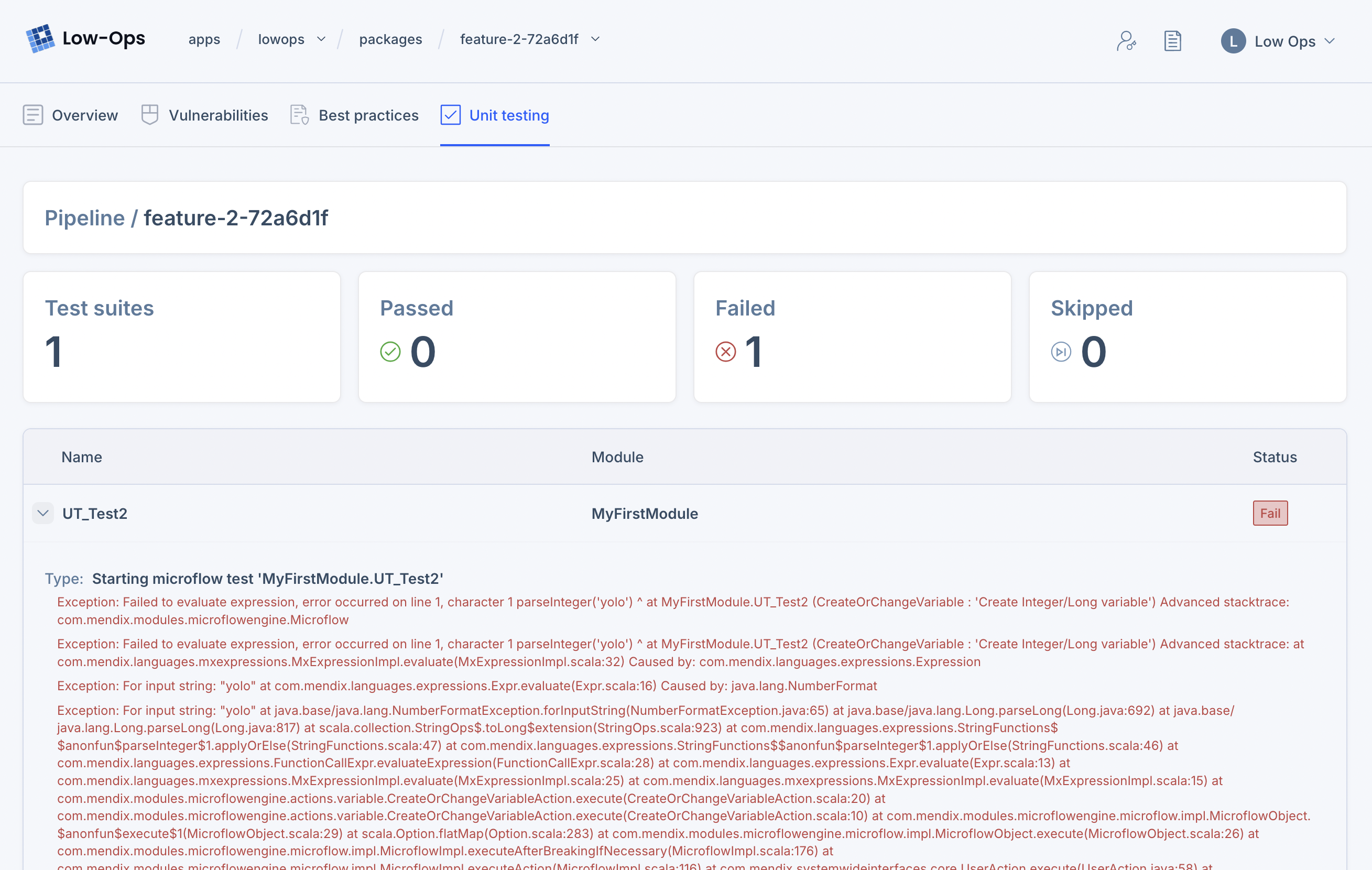
Unit testing is a type of software testing where individual units or components of a software application are tested in isolation to verify their correctness.
You can see the Unit Testing summary in the Packages screen under the job column. You can also navigate to the package
details Application > Package > Unit Testing screen to see full details of the unit testing.
Package Approval
Package approval works only in protected environments. To learn more about protected environments, see Protected Environments.
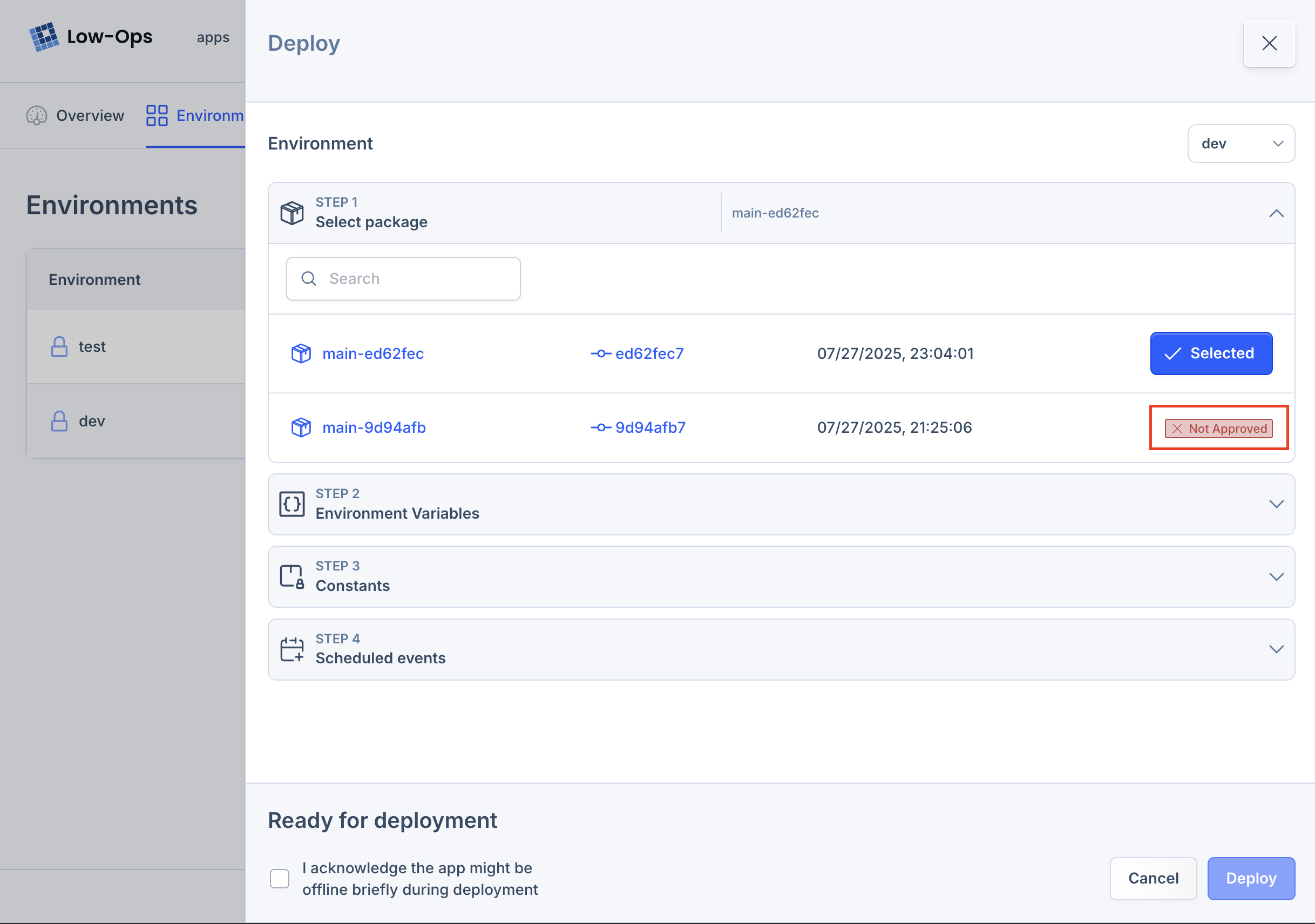
By default all packages on protected environments are unapproved. You can see that in the Packages screen.
Unapproved packages marked with a x icon. Package can be approved by Owner or Admin users.
To approve a package, navigate to Application > Packages screen and click to the menu icon in the package row. Select
Approve from the menu. You will see the ✓ icon if package is approved. It is also possible to disapprove a package
in the same way.
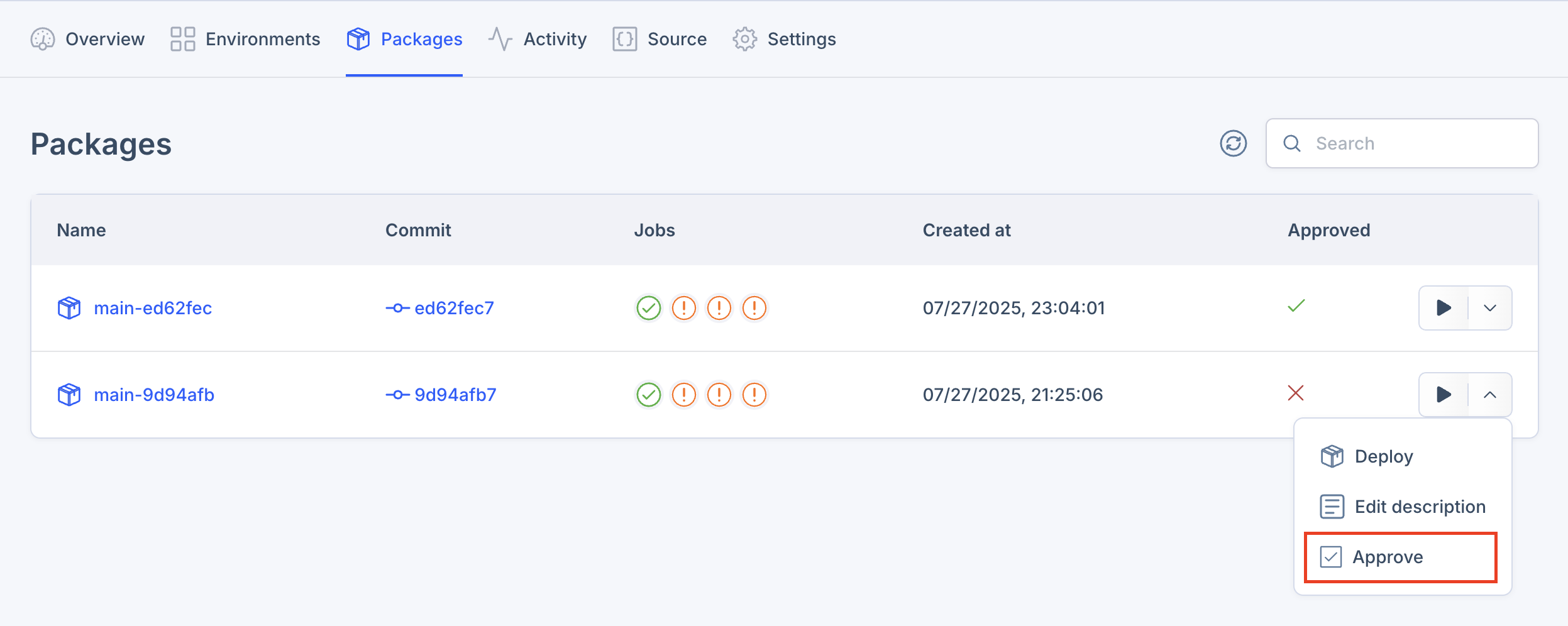
If the package is not approved, you can't deploy it to the protected environment.
Package Builds
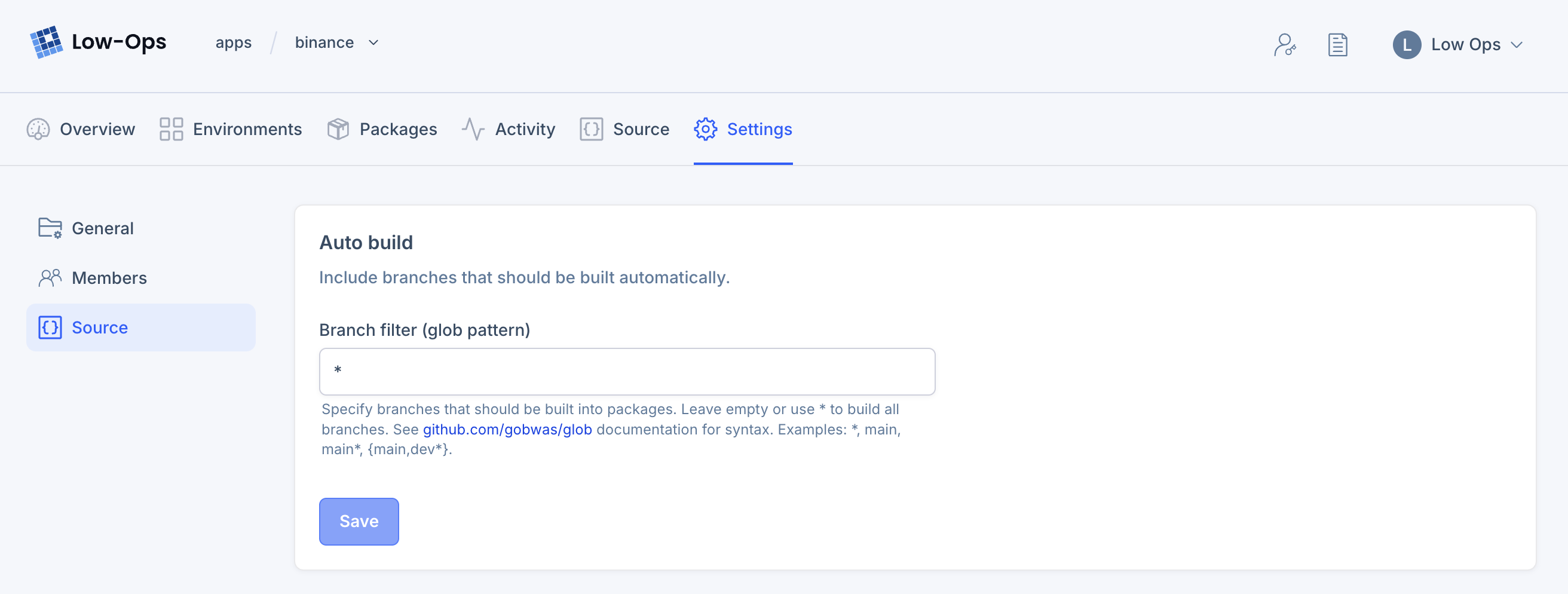
Package builds are created automatically when you push a new commit to the repository. By default package build is triggered for every commit for every branch.
You can define which branches should trigger a build. To do that, navigate to the Application > Settings > Source and
change the Branch names as glob pattern.